Your Website : Create a Custom Page

Updated more than a week ago

This answer shows how to add a new custom page to your website.

To add a new page that automatically displays property listings, contact AgentWebsite Support. We will add the page for you.

Instructions

  1. Open the AgentWebsite Control Panel.
  2. Click Pages. The list of pages will be displayed.
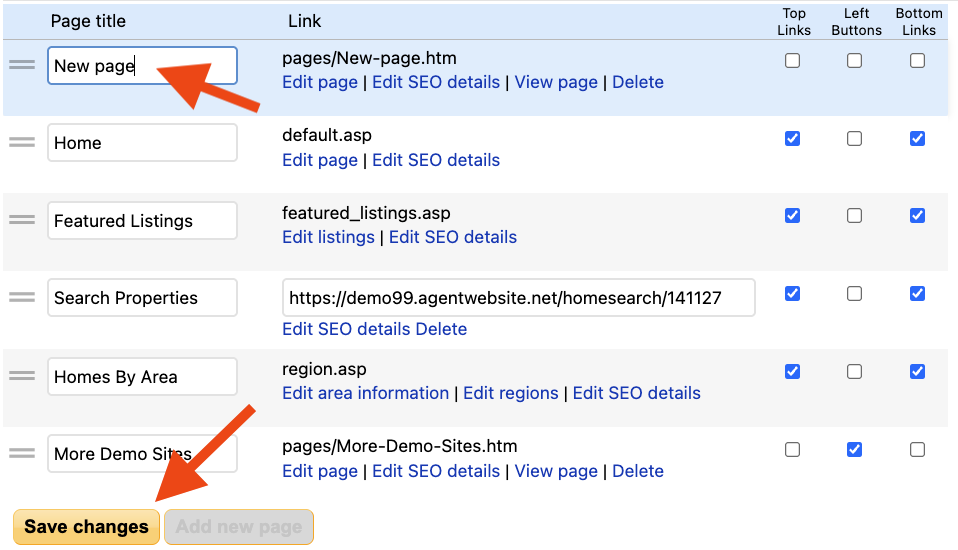
  3. Click Add new page at the bottom of the window. A new page will be added to the top of the list.
  4. Enter a title for your new page, then click Save changes.
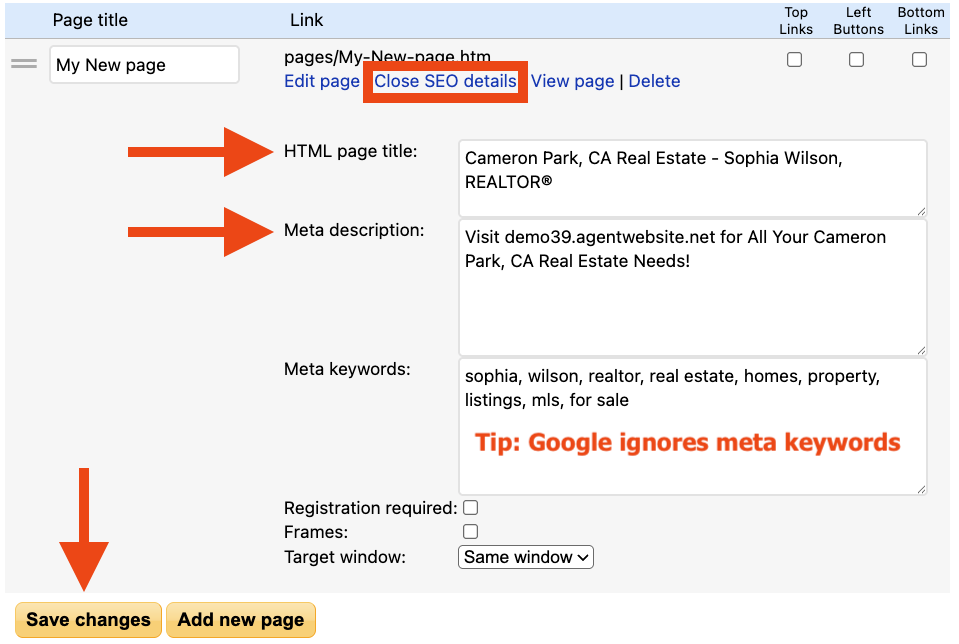
  5. Click Edit SEO details. Scroll down if needed, then edit your page's SEO details. More info.
  6. Click Close SEO details close the details form.
  7. Click Save changes
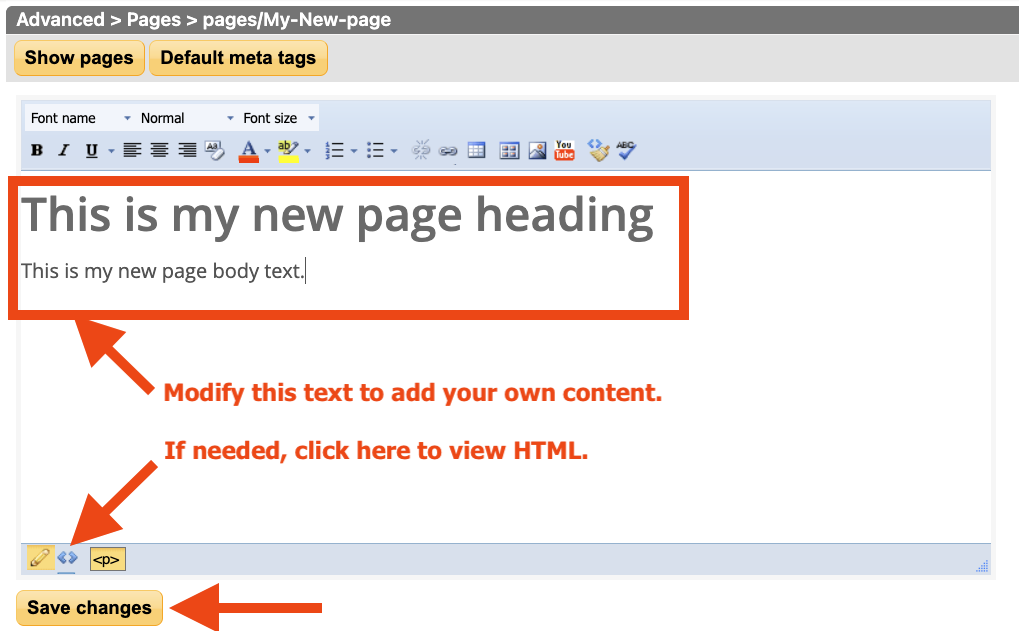
  8. If needed, scroll to find your new page, then click Edit page.
  9. The page editor will be displayed. Enter some content in your new page, then click Save changes.
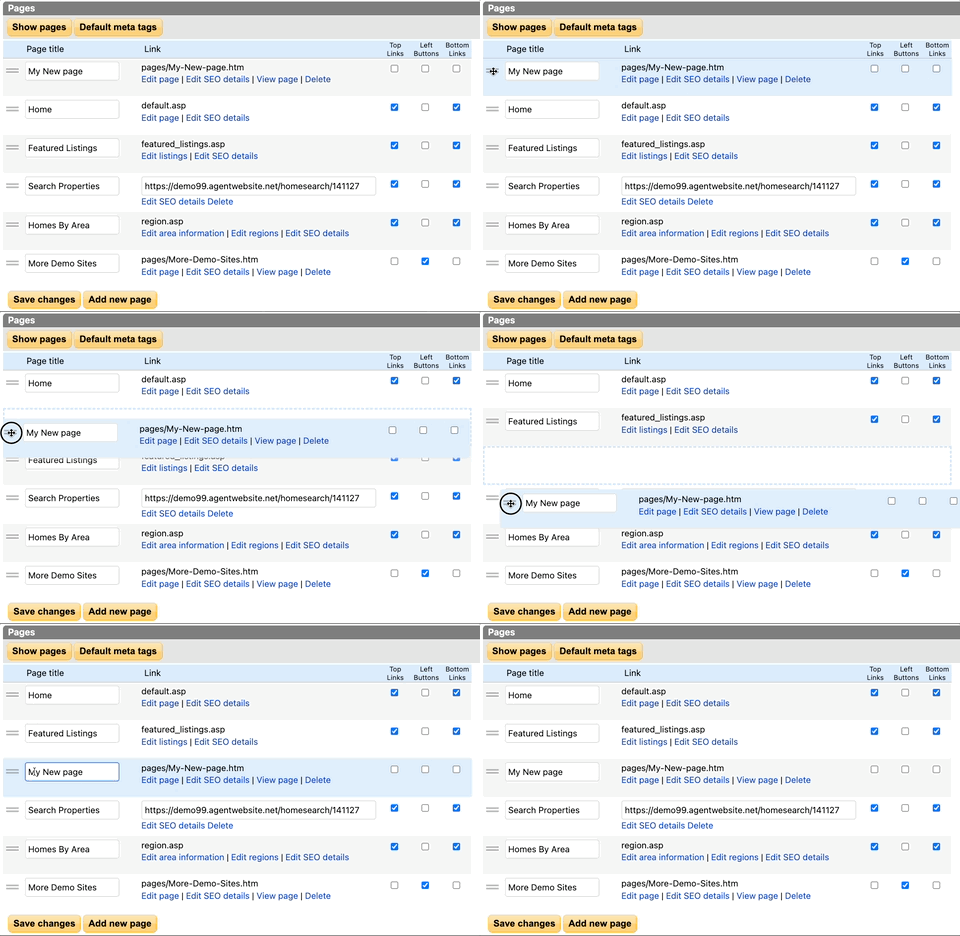
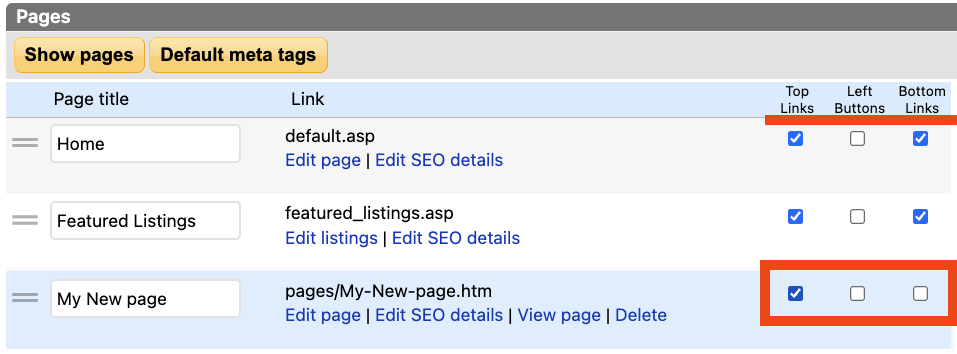
  10. Click Show pages at the top of the window. The list of pages will be displayed. If needed, scroll to find your new page.
  11. Drag and drop your new page to the desired position in your website's navigation.


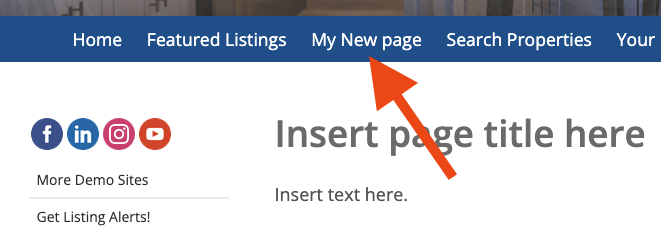
  12. Check the appropriate checkboxes to add the new page to your website's navigation.
  13. Click View page to open your website in a new tab and check your work.
  14. If you don't see the changes you made on your website, reload the page. Learn how.

If you need help with your custom page, please ask! We will be happy to help.


Need Help With This? Contact Us!


20+ YEARS OF QUALITY SERVICE WITH A SMILE

@ 2026 AgentWebsite  Terms of Use | Privacy | Proud member of East TN REALTORS®