Your Website : Add a Blog to Your Website

Updated more than a week ago

Follow these steps to add a blog to your website.

Create Your Blog at Blogger.com

  1. Go to Blogger.com. This is where you will create your blog posts.
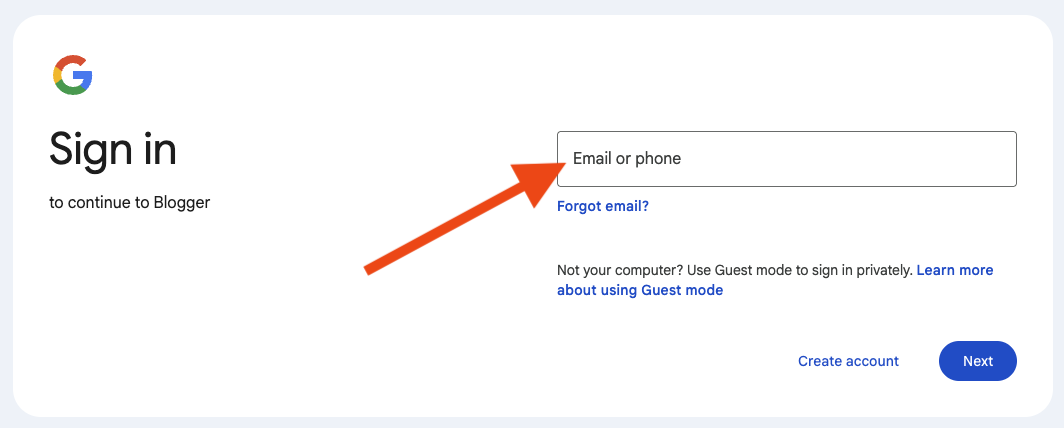
  2. Sign in with your Google account, or click Create account below the sign-in form.
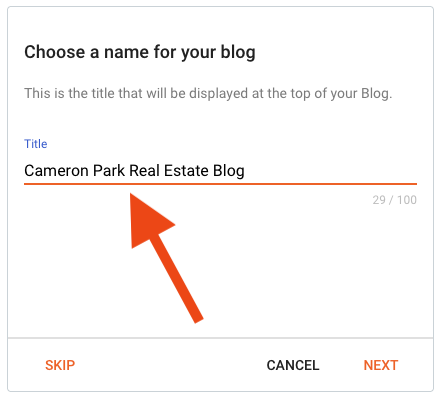
  3. Once signed in, choose a title for your blog. It will be displayed on your website.

    Enter something like Cameron Park Real Estate Blog and click Next. (This is can be changed later.)
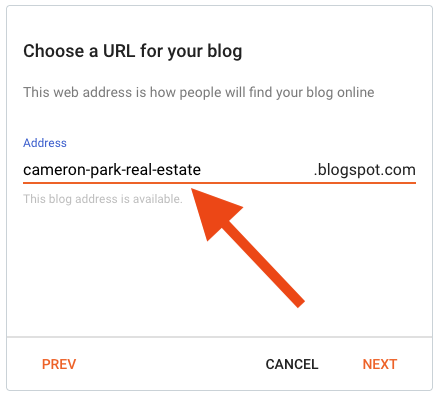
  4. Enter an address for your blog, then click Next. This should be one word, or multiple hyphenated words.

    This URL will not be displayed on your website, but it should be relevant to your business.
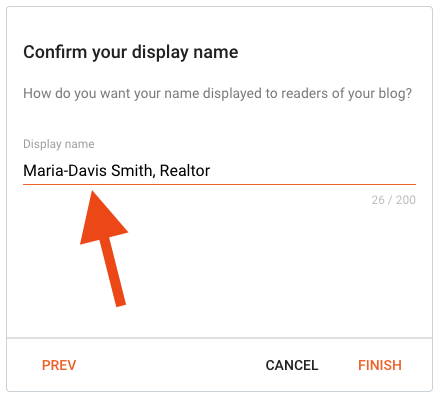
  5. Enter your name, and optionally your designation or title. Then click Finish.
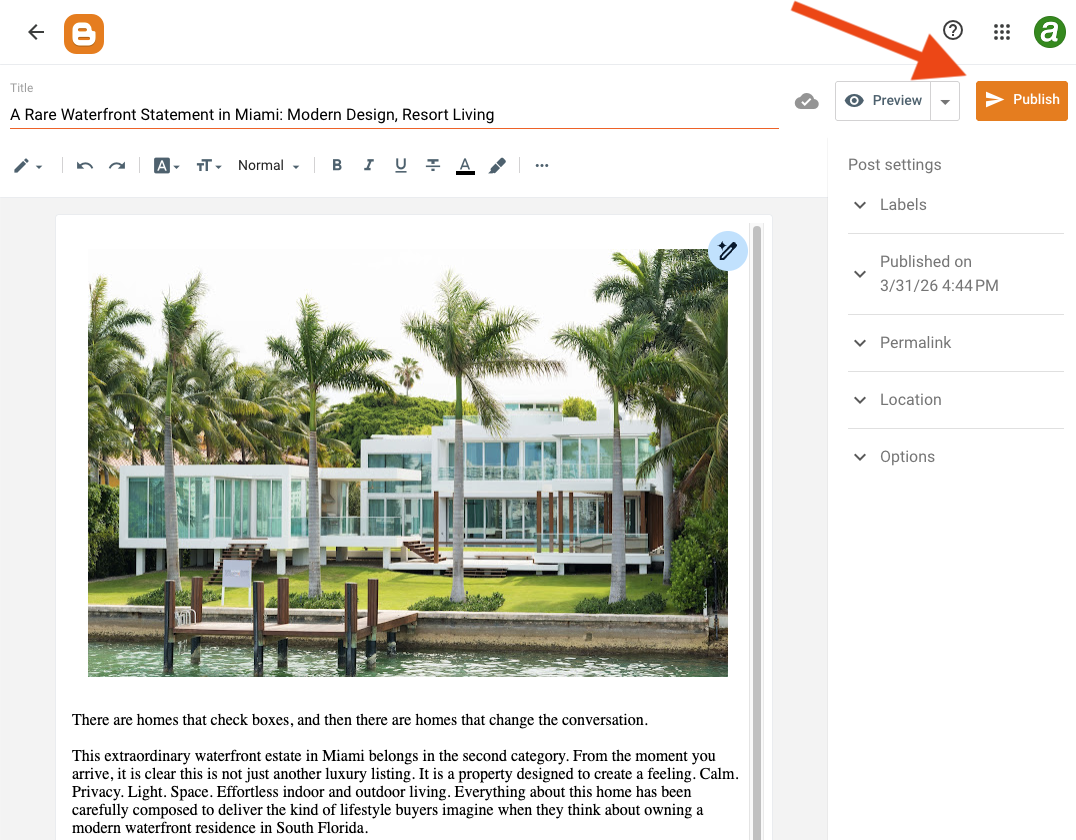
  6. Now that you have created your blog, click + New Post to create your first blog post. You can add text and images.
  7. Click Publish to save your new post. Now you are ready to embed your blog on your website.

Seamlessly Embed Your Blog in Your Website

  1. In Blogger.com, click View Blog at the bottom left. Your new blog will open in a new window.
  2. Copy the blog address (URL) from your browser. It will look something like https://yourblogtitle.blogspot.com.
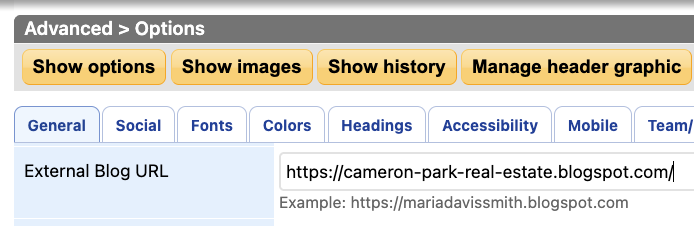
  3. Log in to your AgentWebsite Control Panel and go to Advanced > General > External Blog URL.
  4. Paste your blog address into the External Blog URL box and click Save changes.
  5. Send an email to support to let us know you added your blog.
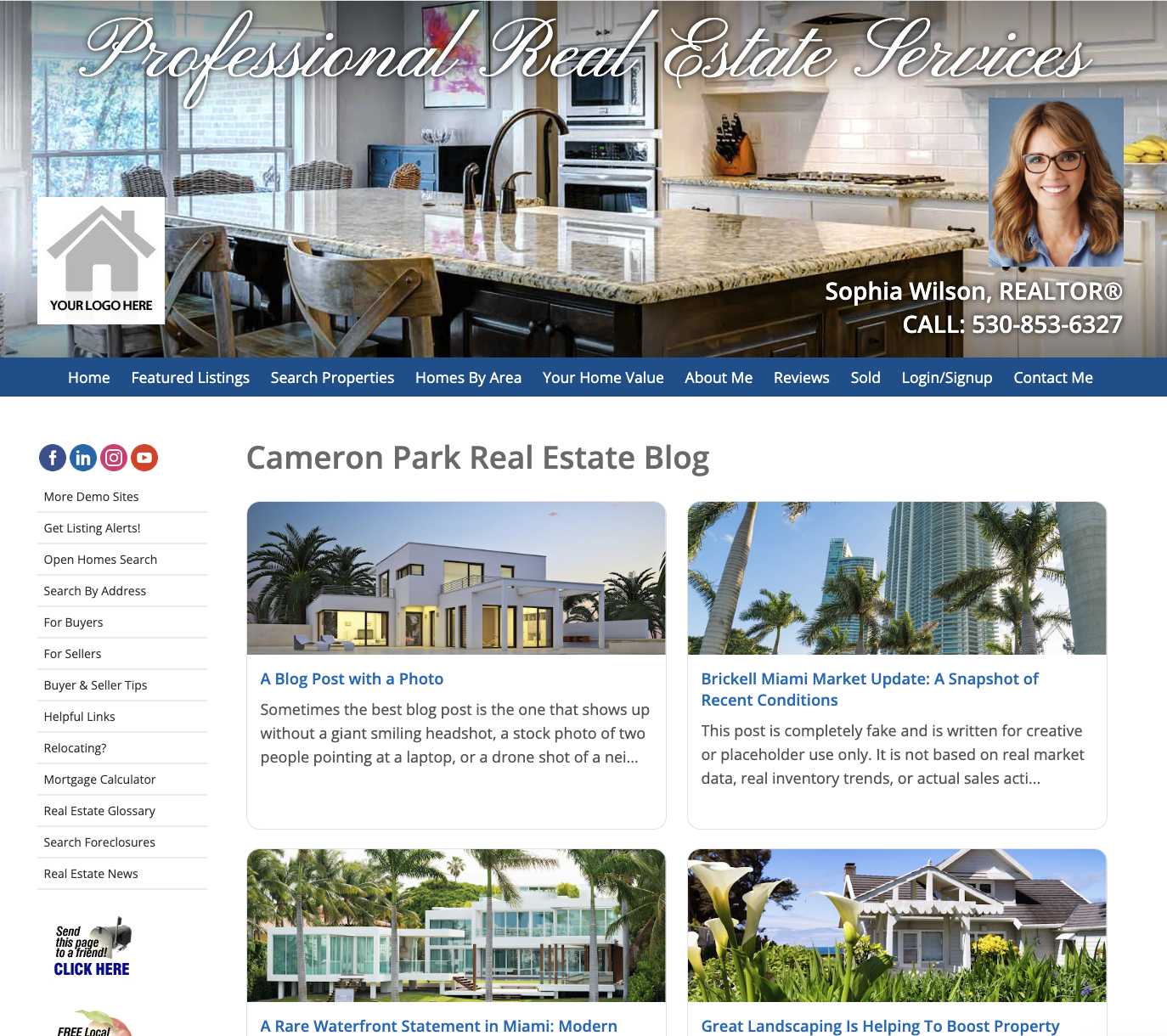
  6. We will enable the blog on your website and email you when it is ready. Here's how it will look:

Create More Blog Posts

Once your blog is live on your website, any new posts that you create on Blogger.com will automatically appear on your website.

Make sure to reload the blog page on your website to see the changes.


Need Help With This? Contact Us!


20+ YEARS OF QUALITY SERVICE WITH A SMILE

@ 2026 AgentWebsite  Terms of Use | Privacy | Proud member of East TN REALTORS®